
Install Qzino App
Launch Qzino instantly on any device. Add to your home screen and jump straight in from iOS, Android, or Desktop
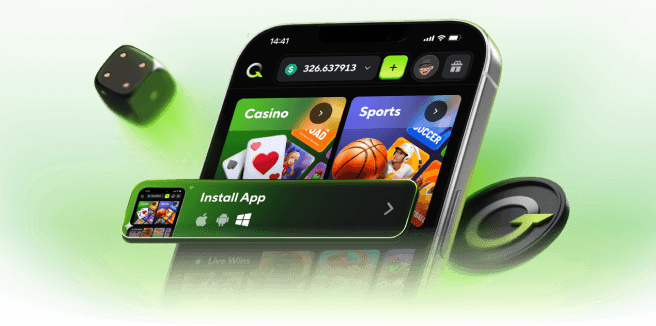
Web App Benefits
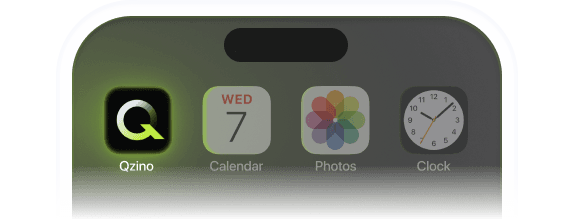
Easy to set up
Skip the app store. Add to home screen in one tap, and you’re ready to go.
Play from anywhere
Take the fun with you! Access your full experience any time with one click.

Lightweight & Fast
High performance without the heavy download. It loads instantly and saves storage while delivering top-tier speed.
FAQ
What is a PWA?
A Progressive Web App (PWA) gives you an app-like experience directly through your browser. It’s lightweight, fast, and lives on your home screen like a regular app, but without the need for a massive download from an app store.
Which browsers are supported?
You can enjoy the full experience on almost any modern browser. We recommend Chrome or Safari for the smoothest performance. Whether you're on an iPhone, Android, or desktop, just look for the "Install" or "Add to Home Screen" option in your browser menu to get started.
Do I need to update the app?
Not at all. It updates itself in the background, so you’ll always have the most up-to-date experience without ever lifting a finger.
Is it safe to use?
Absolutely. Our PWA runs over a secure connection, meaning your data is encrypted and protected. Plus, because it’s web-based, it follows strict privacy standards that give you more control over your personal information.
How to install app on Android?
If you’re an Android user, follow these quick steps:Open Qzino in the Chrome browser.Tap the three dots in the browser menu.Press "Add to Homescreen" and confirm it.
How to install app on iPhone/iPad (iOS)?
Getting the app on your iOS device is quick and easy. Just follow these steps:Open Qzino in Safari or Chrome browser.Tap the "three dots" and then the Share button (the square with an upward arrow at the bottom of your screen).Scroll down and select "Add to Home Screen."Confirm it and done!
How do I log in to the app if I registered via a crypto wallet?
To access the app, first set an email and password in the account settings. You’ll then be able to use those details to sign in directly to the app.